📂 TI-84 Online Calculator

How to Use Matrices on a TI-84 Calculator: Complete Step-by-Step Guide

By Dr. Vivienne Blackwell · · 7 min read
How to Use Matrices on a TI-84 Calculator: Complete Step-by-Step Guide

Introduction

How to use matrices on a TI-84 calculator is a common question among students studying algebra, linear algebra, statistics, engineering, and computer science. Matrices help you solve systems of equations, perform matrix multiplication, find determinants, and calculate matrix inverses. Fortunately, the TI-84 calculator includes built-in matrix functions that make these calculations fast and accurate.

Whether you are checking homework, solving classroom problems, or learning linear algebra, matrix functions can save time. Moreover, they can reduce calculation errors. In this guide, you will learn how to use matrices on a TI-84 calculator step by step. You will also learn how to enter matrices, edit values, perform matrix operations, find determinants, calculate inverses, and solve systems of equations.

What Is a Matrix?

A matrix is a rectangular arrangement of numbers. It contains rows and columns.

Example:

[
\begin{bmatrix}
1 & 2 \
3 & 4
\end{bmatrix}
]

This matrix contains:

  • 2 rows
  • 2 columns

Matrices appear in many areas of mathematics and science. For example, they help organize data and solve multiple equations at once.

Common Uses of Matrices

Matrices help you:

  • Solve systems of linear equations
  • Store numerical data
  • Perform transformations
  • Analyze statistics
  • Model engineering systems
  • Solve economics problems
  • Work with computer graphics

As a result, matrices are an essential topic in many mathematics courses.

Why Learn How to Use Matrices on a TI-84 Calculator?

Manual matrix calculations take time. In addition, one small arithmetic mistake can lead to the wrong answer.

However, the TI-84 calculator simplifies the process. It allows you to:

  • Save time
  • Improve accuracy
  • Verify homework answers
  • Solve larger matrix problems
  • Check matrix multiplication
  • Calculate determinants instantly

Therefore, learning how to use matrices on a TI-84 calculator can improve both speed and confidence.

Understanding Matrix Storage on the TI-84

The TI-84 provides ten built-in matrices:

  • [A]
  • [B]
  • [C]
  • [D]
  • [E]
  • [F]
  • [G]
  • [H]
  • [I]
  • [J]

You can store different values in each matrix.

Most students begin with:

  • Matrix [A]
  • Matrix [B]

These matrices work well for practice and homework problems.

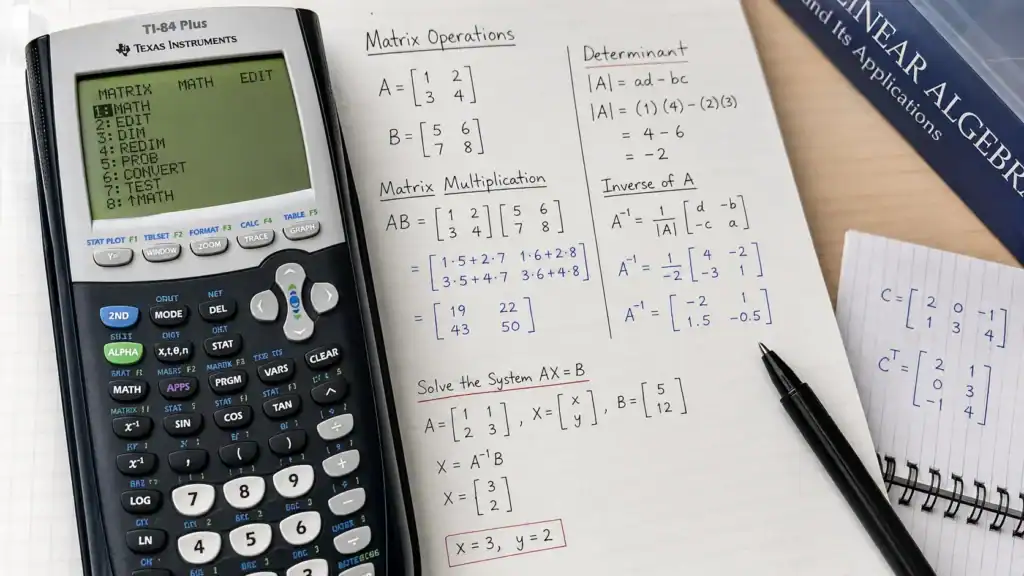
How to Use Matrices on a TI-84 Calculator: Entering a Matrix

Step 1: Open the Matrix Menu

First, press:

2ND → x⁻¹

The MATRIX menu will appear.

Step 2: Select EDIT

Next, use the arrow keys to select:

EDIT

Then choose:

1:[A]

Press:

ENTER

Step 3: Set Matrix Dimensions

Now enter the matrix dimensions.

For the matrix:

[
\begin{bmatrix}
1 & 2 \
3 & 4
\end{bmatrix}
]

Enter:

  • Rows = 2
  • Columns = 2

Press ENTER after each value.

Step 4: Enter Matrix Values

Then enter:

1 → ENTER

2 → ENTER

3 → ENTER

4 → ENTER

The calculator stores the matrix in [A].

How to Edit a Matrix

Sometimes you need to change a value.

To edit a matrix:

  1. Open the MATRIX menu.
  2. Select EDIT.
  3. Choose the matrix.
  4. Move to the desired entry.
  5. Type the new value.
  6. Press ENTER.

Before performing calculations, always verify your entries.

Matrix Addition on a TI-84 Calculator

Matrix addition requires both matrices to have the same dimensions.

Example

Let:

[
A=
\begin{bmatrix}
1 & 2 \
3 & 4
\end{bmatrix}
]

and

[
B=
\begin{bmatrix}
5 & 6 \
7 & 8
\end{bmatrix}
]

Find:

[
A+B
]

Procedure

First, store Matrix A in [A].

Next, store Matrix B in [B].

Then enter:

[A] + [B]

Press ENTER.

Result

[
\begin{bmatrix}
6 & 8 \
10 & 12
\end{bmatrix}
]

The calculator adds corresponding entries from each matrix.

Matrix Multiplication on a TI-84 Calculator

However, matrix multiplication follows different rules.

The number of columns in Matrix A must equal the number of rows in Matrix B.

Example

Multiply:

[
A=
\begin{bmatrix}
1 & 2 \
3 & 4
\end{bmatrix}
]

and

[
B=
\begin{bmatrix}
5 & 6 \
7 & 8
\end{bmatrix}
]

Enter:

[A] × [B]

Press ENTER.

Result

[
\begin{bmatrix}
19 & 22 \
43 & 50
\end{bmatrix}
]

Therefore, matrix multiplication produces a different result than matrix addition.

How to Find a Matrix Inverse

Finding an inverse is one of the most useful matrix functions.

Example

For:

[
A=
\begin{bmatrix}
1 & 2 \
3 & 4
\end{bmatrix}
]

Find:

[
A^{-1}
]

Procedure

First, insert:

[A]

Next, press:

x⁻¹

Then press ENTER.

Result

[
\begin{bmatrix}
-2 & 1 \
1.5 & -0.5
\end{bmatrix}
]

Because the determinant is not zero, the inverse exists.

Solving Systems of Equations with Matrices

One major benefit of learning how to use matrices on a TI-84 calculator is solving systems of equations quickly.

Example

Solve:

x + y = 5

2x + 3y = 12

Step 1: Create the Coefficient Matrix

Store in Matrix A:

[
\begin{bmatrix}
1 & 1 \
2 & 3
\end{bmatrix}
]

Step 2: Create the Constant Matrix

Store in Matrix B:

[
\begin{bmatrix}
5 \
12
\end{bmatrix}
]

Step 3: Calculate the Solution

Enter:

[A]⁻¹[B]

Press ENTER.

Result

[
\begin{bmatrix}
3 \
2
\end{bmatrix}
]

Therefore:

  • x = 3
  • y = 2

How to Find the Determinant of a Matrix

The determinant tells you whether an inverse exists.

Procedure

First, open MATRIX.

Next, select:

MATH

Then choose:

det(

Insert:

[A]

Press ENTER.

Result

For:

[
\begin{bmatrix}
1 & 2 \
3 & 4
\end{bmatrix}
]

The determinant equals:

-2

Therefore, the matrix has an inverse.

Common Mistakes When Learning How to Use Matrices on a TI-84 Calculator

1. Invalid Dimensions

This error occurs when dimensions do not match the operation.

For example:

  • Adding a 2×2 matrix to a 3×3 matrix
  • Multiplying incompatible matrices

Therefore, check dimensions before calculating.

2. Singular Matrix Error

If det(A) = 0, the matrix has no inverse.

Consequently, the TI-84 cannot compute an inverse.

3. Incorrect Matrix Entries

A single wrong value can change every result.

Therefore, review entries carefully.

4. Editing the Wrong Matrix

Many students accidentally edit Matrix [B] instead of Matrix [A].

Always verify the matrix name before entering values.

Tips for Using Matrices on a TI-84 Calculator Faster

To work more efficiently:

  • Use Matrix [A] for coefficients.
  • Use Matrix [B] for constants.
  • Check dimensions first.
  • Verify determinants before finding inverses.
  • Confirm answers by substitution.
  • Save commonly used matrices.

As a result, you can reduce mistakes and solve problems faster.

Frequently Asked Questions About How to Use Matrices on a TI-84 Calculator

How do I use matrices on a TI-84 calculator?

Open the MATRIX menu, create a matrix, enter values, select an operation, and press ENTER.

Why should I learn how to use matrices on a TI-84 calculator?

The calculator saves time, improves accuracy, and helps solve complex matrix problems quickly.

Can I solve systems of equations when learning how to use matrices on a TI-84 calculator?

Yes. You can use matrix inverses to solve many systems of linear equations.

Is finding an inverse part of how to use matrices on a TI-84 calculator?

Yes. The TI-84 can calculate matrix inverses with a few key presses.

How many matrices can the TI-84 store?

The calculator provides ten matrices, labeled [A] through [J].

Conclusion

Now that you understand how to use matrices on a TI-84 calculator, you can solve matrix problems faster and with greater accuracy. You can enter matrices, perform matrix operations, calculate determinants, find inverses, and solve systems of equations efficiently.

Overall, the process is simple:

  1. Open the MATRIX menu.
  2. Create a matrix.
  3. Enter dimensions and values.
  4. Select the desired operation.
  5. Press ENTER.
  6. Interpret the result.

By mastering how to use matrices on a TI-84 calculator, you will strengthen your skills in algebra, linear algebra, statistics, engineering, economics, and many other quantitative fields.

Dr. Vivienne Blackwell

Dr. Vivienne Blackwell is a mathematics and educational technology specialist focused on TI-84 calculator online tools, graphing calculator simulations, algebra, calculus, and statistics problem-solving systems. She creates structured and optimised guides that explain how to use TI-84 emulators and online calculator platforms for accurate equation solving, function graphing, and exam-focused mathematical analysis.