Introduction
Finding the area under a curve is one of the most powerful applications of calculus, known formally as evaluating a definite integral. Whether calculating physical work, accumulated velocity, or consumer surplus in economics, integrating curves is a central topic on high school and AP Calculus exams.
Rather than solving tedious Riemann sums or complex anti-derivatives manually, your TI-84 can calculate and shade definite integrals in seconds. Follow along using our free browser-based TI-84 Calculator Online.
Graph and Integrate Curves Online
Shade definite integrals and calculate exact areas under functions using our full online TI-84 simulator.
What Does Area Under a Curve Mean?
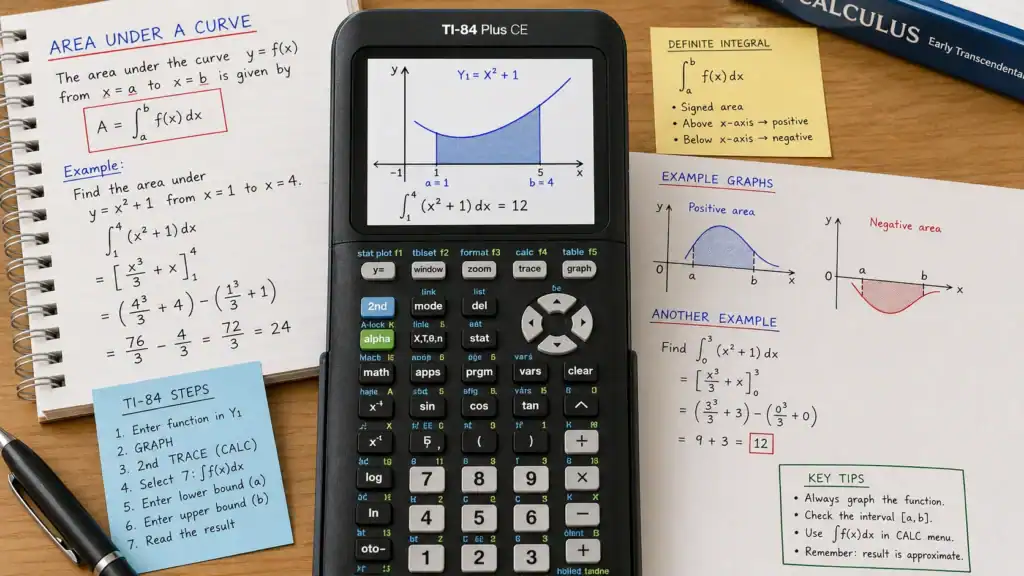
The definite integral represents the net signed area bounded between a function (f(x)), the x-axis, and the vertical boundary lines (x = a) (Lower Bound) and (x = b) (Upper Bound):
[ text{Area} = int_a^b f(x) , dx ]
Regions above the x-axis count as positive area, while regions below count as negative area.
Method 1: Finding Area Graphically Using the CALC Menu
This method visualizes the function and shades the bounded region directly on screen.
- Enter Function: Press
[Y=]and input your function intoY1(e.g.,X²). - Graph: Press
[GRAPH]. (Use[ZOOM]>6:ZStandardif needed). - Open CALC: Press
[2ND]followed by[TRACE]. - Select Integral: Choose
7:∫f(x)dxand press[ENTER]. - Set Lower Bound: Type your lower limit (e.g.,
0) and press[ENTER]. - Set Upper Bound: Type your upper limit (e.g.,
2) and press[ENTER].
Result: The calculator shades the area under the curve from (x=0) to (x=2) and displays ∫f(x)dx = 2.6666667 (which equals (8/3)).
Method 2: Finding Area Quickly from the Home Screen (fnInt)
If you don’t need visual shading and want a faster numerical answer:
- Press
[MATH]and select9:fnInt(. - On modern TI-84 Plus CE models, fill in the template: [int_{0}^{2} (X^2) , dX]
- Press
[ENTER]to immediately display2.6666667. - Tip: Press
[MATH]>1:►Frac>[ENTER]to convert the decimal answer into the exact fraction8/3!
Worked Example: Integrating a Linear Function
Problem: Evaluate (int_1^4 (2x + 1) , dx).
- Press
[MATH]>9:fnInt. - Enter Lower Bound:
1, Upper Bound:4, Function:2X + 1, Variable:X. - Press
[ENTER]. - Result:
18. (Geometric check: a trapezoid with height 3 and parallel bases 3 and 9 gives area (frac{3+9}{2} times 3 = 18)).
Common Errors & Troubleshooting
- ERR: BOUND: Ensure Lower Bound is smaller than Upper Bound.
- Graph Not Visible: Press
[ZOOM]>0:ZoomFitto automatically scale the y-axis to fit the curve. - Net Signed Area vs. Total Geometric Area: If the curve crosses below the x-axis, the integral subtracts the area below. To calculate total geometric area, integrate (|f(x)|) using
MATH > NUM > 1:abs(.
Frequently Asked Questions
Can I find the area between two intersecting curves?
Yes. Enter the top curve in Y1 and bottom curve in Y2. Then in MATH > 9:fnInt, integrate Y1 - Y2 across their intersection points. See our guide on Finding Extrema & Critical Values.
Summary
Whether using graphical shading ([2ND] + [TRACE] > 7:∫f(x)dx) or the home screen command ([MATH] > 9:fnInt), the TI-84 calculates definite integrals with speed and precision. Test your integrals now on the online TI-84 graphing tool!

Dr. Vivienne Blackwell is a mathematics and educational technology specialist focused on TI-84 calculator online tools, graphing calculator simulations, algebra, calculus, and statistics problem-solving systems. She creates structured and optimised guides that explain how to use TI-84 emulators and online calculator platforms for accurate equation solving, function graphing, and exam-focused mathematical analysis.