Introduction
Finding maximum and minimum values is a fundamental skill in algebra, precalculus, calculus, physics, and economics. Whether you are finding the peak of a projectile, optimizing revenue in a business problem, or analyzing polynomial curves, your calculator can locate these critical points in seconds.
The TI-84 series features a dedicated CALC menu that automatically calculates local extrema directly from your plotted function. If you don’t have a physical device on hand, you can follow along directly using our free TI-84 Calculator Online in your browser.
Try This on the Online TI-84 Calculator
Practice finding maximum and minimum points on real graphs using our responsive browser simulator — no download or login required.
When Should You Find Maximum and Minimum Values?
You will frequently need to calculate maximums and minimums in the following scenarios:
- Optimization Problems: Maximizing volume, surface area, or profit while minimizing material costs or time.
- Quadratic Analysis: Finding the exact vertex of upward or downward opening parabolas.
- Calculus Turning Points: Identifying relative extrema where the derivative (f'(x) = 0).
- Physics Trajectories: Determining maximum height reached by a projectile and time elapsed.
What Are Maximum and Minimum Values?
In graphing and calculus:
- Relative Maximum: The highest point a function reaches within a local open interval (the peak).
- Relative Minimum: The lowest point a function reaches within a local open interval (the valley).
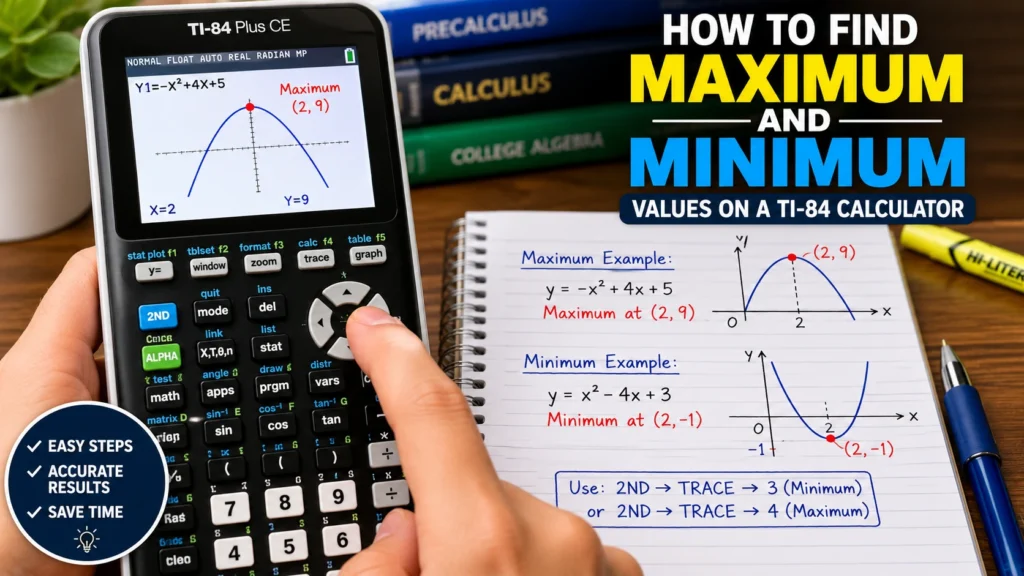
For example, in the parabola (y = x^2 – 4x + 3), the curve opens upward with a vertex at ((2, -1)), representing a minimum value of (y = -1) at (x = 2).
Step-by-Step Instructions: Finding a Maximum Value
Follow these steps to find the peak (maximum) of a function such as (y = -x^2 + 4x + 5):
- Open the Y= Editor: Press
[Y=]and clear any existing functions. - Enter Your Function: Type
(-)[X,T,θ,n][x²][+]4[X,T,θ,n][+]5. - Graph the Curve: Press
[GRAPH]. If the curve is cut off, press[ZOOM]>6:ZStandard. - Open the Calculate Menu: Press
[2ND]followed by[TRACE](which accesses[CALC]). - Select Maximum: Scroll down to
4:maximumand press[ENTER]. - Set Left Bound: Use the left arrow key
[◄]to move the blinking cursor slightly to the left of the peak, then press[ENTER]. A small marker arrow appears at the top. - Set Right Bound: Use the right arrow key
[►]to move the cursor to the right of the peak, then press[ENTER]. - Provide a Guess: Move the cursor close to the peak and press
[ENTER].
Result: The calculator will scan the bounded region and display X = 2 and Y = 9 at the bottom of the screen. The maximum value of the function is 9.
Step-by-Step Instructions: Finding a Minimum Value
To find the lowest point of a curve (such as (y = x^2 – 4x + 3)):
- Enter the Function: Press
[Y=]and enterX² - 4X + 3. - Graph: Press
[GRAPH]to view the parabola. - Open CALC Menu: Press
[2ND]>[TRACE]. - Select Minimum: Choose
3:minimumand press[ENTER]. - Set Bounds & Guess: Set the Left Bound to the left of the vertex, the Right Bound to the right, and press
[ENTER]on your Guess.
Result: The screen displays X = 2, Y = -1. The minimum value is -1.
Worked Examples
Worked Example 1: Finding a Profit Maximum
Problem: A business models its profit using the equation (P(x) = -x^2 + 6x – 2), where (x) is units produced in thousands. Find the maximum profit.
- Enter
-X² + 6X - 2intoY1and press[GRAPH]. - Press
[2ND]>[TRACE]>4:maximum. - Set Left Bound at (x = 2), Right Bound at (x = 4), and press
[ENTER]on Guess. - Solution: The calculator outputs (X = 3, Y = 7). Maximum profit is $7,000 at 3,000 units.
Worked Example 2: Finding a Minimum Cost
Problem: Find the minimum value of (C(x) = x^2 – 8x + 10).
- Enter
X² - 8X + 10intoY1and press[GRAPH]. - Press
[2ND]>[TRACE]>3:minimum. - Set Left Bound at (x = 3), Right Bound at (x = 5), and Guess at (x = 4).
- Solution: The calculator outputs (X = 4, Y = -6). The minimum value is -6.
Common Errors & Troubleshooting
- ERR: NO SIGN CHG: Occurs if your Left Bound and Right Bound do not trap the peak or valley between them. Always ensure the highest or lowest point sits visibly between both arrows.
- Peak Outside Window: If you cannot see the vertex, press
[WINDOW]and expandYmaxorYmin, or use[ZOOM]>0:ZoomFit. - Minus Sign Confusion: Remember to use the negative key
[(-)]for leading negatives (e.g. (-x^2)), not the subtraction key[-].
Frequently Asked Questions
Can I find extrema on multiple graphed lines?
Yes. If you have multiple functions in Y=, use the up [▲] and down [▼] arrow keys to select which function you are analyzing before setting bounds.
How does this compare to finding derivatives in Calculus?
In calculus, extrema occur where (f'(x) = 0). The TI-84 numerical solver uses approximation algorithms to reach the exact same coordinate without requiring manual algebraic differentiation. You can also explore our guide on TI-84 Functions for Calculus Students for more advanced tools.
Summary
Finding maximums and minimums on a TI-84 is fast and reliable with the CALC menu ([2ND] + [TRACE]). By setting accurate left and right bounds, you can solve algebra and calculus optimization problems with complete confidence. Test your skills now on the live TI-84 simulator!

Dr. Vivienne Blackwell is a mathematics and educational technology specialist focused on TI-84 calculator online tools, graphing calculator simulations, algebra, calculus, and statistics problem-solving systems. She creates structured and optimised guides that explain how to use TI-84 emulators and online calculator platforms for accurate equation solving, function graphing, and exam-focused mathematical analysis.