Introduction
The digital SAT Math section allows approved graphing calculators throughout both math modules. However, many students lose points not because of difficult math, but because their calculator was left in the wrong mode from physics or algebra class — leading to radian/degree errors, scientific notation confusion, or unsimplified decimals.
Checking and locking your TI-84 settings takes less than 60 seconds before exam day and ensures you never drop avoidable points. Practice with optimal exam configurations on the free TI-84 Calculator Online.
Practice SAT Math on the Online TI-84
Configure exam settings, store variables, and solve SAT math problems quickly using our web-based TI-84 emulator.
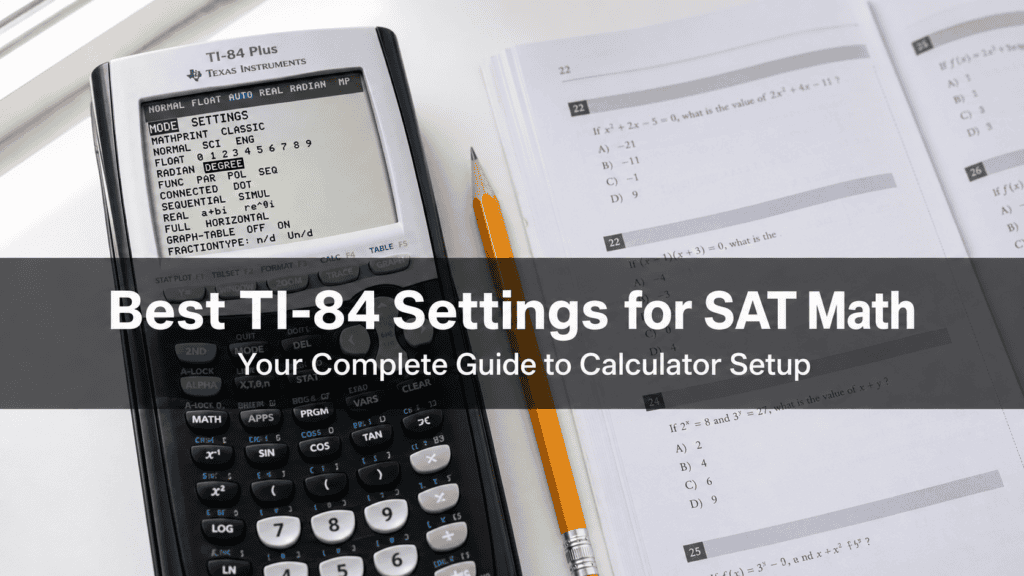
The Ideal TI-84 SAT Mode Configuration
Press the [MODE] button and verify each of the following lines:
| Setting Line | Recommended SAT Setting | Why It Matters |
|---|---|---|
| Number Display | NORMAL | Prevents answers from appearing in confusing scientific notation (SCI) or engineering mode (ENG). |
| Decimals | FLOAT | Displays full numerical precision rather than rounding automatically to fixed decimals. |
| Angle Mode | DEGREE | Over 90% of SAT trigonometry questions involve degrees (e.g. right triangle soh-cah-toa). Switch to RADIAN only when radians ((pi)) are explicitly stated. |
| Graph Format | FUNC | Standard Cartesian function graphing mode ((y = f(x))). |
| Display Type | MATHPRINT | Renders clean textbook-style fractions ((frac{a}{b})), roots, and exponents. |
| Fraction Output | n/d & UN/D | Keeps results in standard improper fraction form. |
| Stat Diagnostics | ON | Displays correlation coefficient r and r² when running statistics regression. |
Crucial Quick Shortcuts for SAT Math
- Quick Fraction Conversion: Press
[MATH]>1:►Frac>[ENTER]to turn any decimal into an exact reduced fraction. - Resetting to Default: If your calculator behaves erratically, press
[2ND]>[+](MEM) >7:Reset>1:All RAM>2:Reset, then re-check Degree mode and MathPrint. - ZStandard Window Reset: Press
[ZOOM]>6:ZStandardto instantly restore standard ([-10, 10]) graphing axes.
Frequently Asked Questions
Should I keep my TI-84 in Degree or Radian mode for SAT?
Keep it in DEGREE by default. If a circle geometry or arc length question specifies radians (e.g., (sin(pi/3))), quickly switch to Radian, perform the calculation, and switch back.
What calculator tricks save the most time on SAT?
Read our in-depth guide on SAT Calculator Tricks That Save Time for variable storage, backsolving, and system intersection techniques.
Summary
Setting your calculator to NORMAL, FLOAT, DEGREE, and MATHPRINT gives you the cleanest, most reliable test-taking experience. Test these settings today on the online TI-84 simulator!

Dr. Vivienne Blackwell is a mathematics and educational technology specialist focused on TI-84 calculator online tools, graphing calculator simulations, algebra, calculus, and statistics problem-solving systems. She creates structured and optimised guides that explain how to use TI-84 emulators and online calculator platforms for accurate equation solving, function graphing, and exam-focused mathematical analysis.